


 About Us
 Conditions générale de vente
 Confidentialité
 Community Guidelines
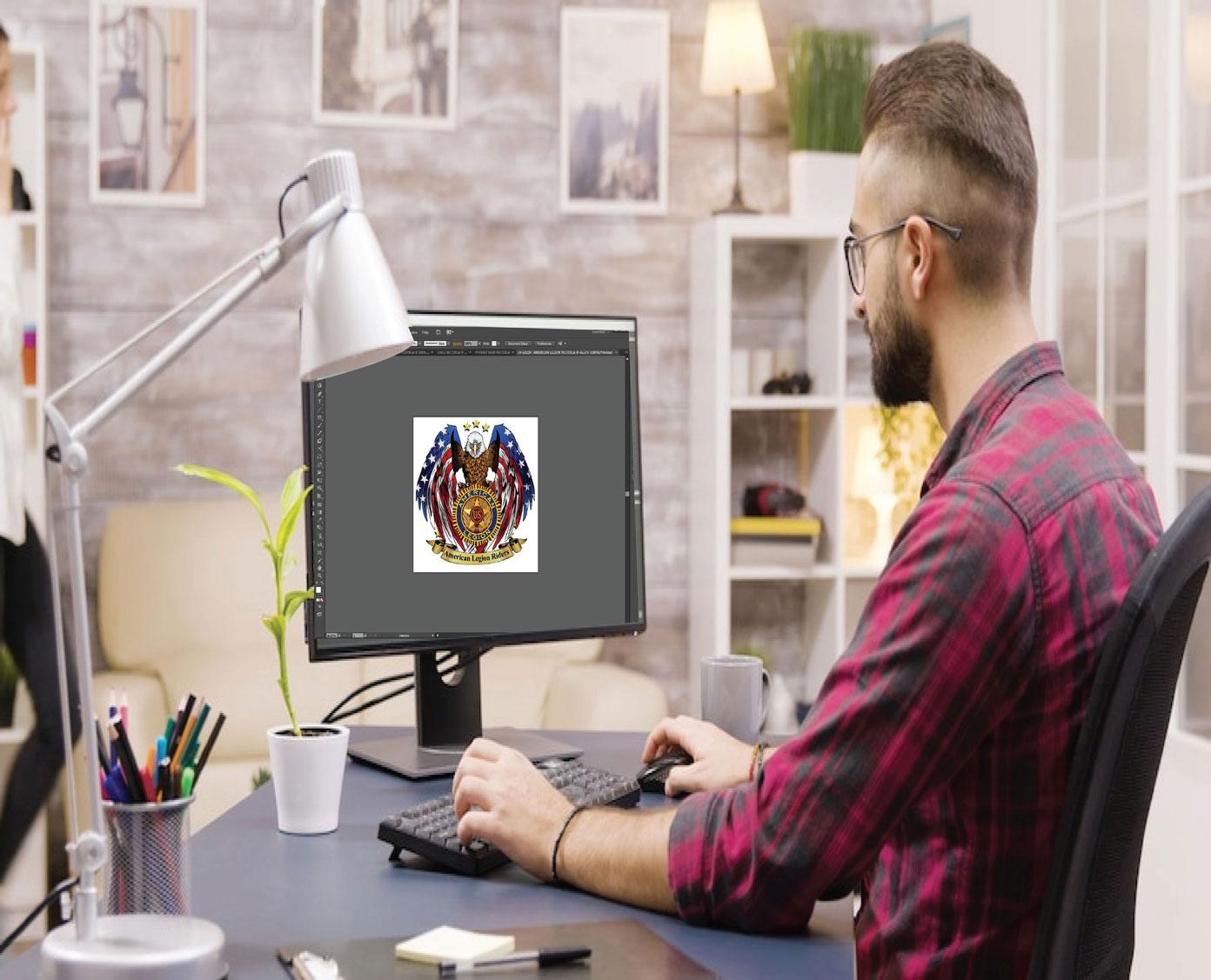
You have a logo that looks flawless on a business card, a website header, and a trade show banner. Now the boss wants it on polo shirts by Friday. You open the vector file, feel confident, and send it to the embroidery machine. Ten minutes later, you are staring at a puckered, wobbly mess that barely resembles your brand. This scenario plays out constantly, and the fix starts with understanding Vector Image Conversion for Machine Embroidery. Vector art and stitch files speak completely different languages, and bridging that gap takes deliberate work. Let's walk through the process the way a professional digitizer actually approaches it.
Why Vector Files Do Not Stitch Themselves
A vector file describes shapes with math. It tells a printer where the edges of your logo sit on a page. An embroidery file describes a physical performance. It tells a needle where to punch through fabric, in what order, at what angle, and how densely. One file paints a picture. The other choreographs a dance.
That gap explains most embroidery disasters. A designer draws a beautiful logo with subtle gradients, thin elegant strokes, and overlapping transparency. The machine sees none of that. It sees thread, and thread has rules. It cannot blend into the background. It cannot fade. It cannot be thinner than a single stitch. Your job during conversion is to translate artistic intent into stitch logic, and that starts long before you touch digitizing software.
Step One: Audit and Clean Your Vector Artwork
Open your vector file in Illustrator, Inkscape, or whatever design tool you trust, and prepare to be ruthless.
Look at your anchor points. Auto-traced artwork often arrives with thousands of tiny nodes creating jagged, noisy paths. Smooth those curves out. Reduce the point count until each shape has only the points it genuinely needs. Clean paths digitize faster and stitch cleaner.
Next, hunt down hidden clutter. Stray points floating off the artboard, duplicate shapes stacked on top of each other, and white shapes pretending to be backgrounds all cause problems later. Delete anything that does not serve the design.
Then handle text properly. Convert every live text element to outlines before you export. Fonts are software, and the embroidery machine does not install software. If a font goes missing, your careful typography defaults to something generic and your client notices immediately. Outlining text locks the letterforms into the file permanently.
Finally, flatten the fancy stuff. Gradients, drop shadows, blurs, and transparency do not exist in thread. Replace each effect with solid color regions. Decide where one color ends and the next begins, and build hard edges at those boundaries. This step forces you to think in thread colors, which is exactly the right mindset for everything that follows.
Step Two: Choose Your Conversion Path
You have two roads here. Auto-digitizing tools promise speed, and modern versions have improved. They work acceptably for simple shapes and rough drafts. For logos with lettering, detail, or anything a client will inspect closely, manual digitizing still wins. The automatic tools make questionable decisions about stitch direction and density that experienced hands would never choose.
Many pros use a hybrid approach. Run the auto-conversion to get a rough layout, then rebuild the important elements manually. That saves time on background fills while keeping the parts that matter under careful control.
Step Three: Translate Shapes into Stitch Types
This is the heart of the craft. Every element in your vector needs a decision about how thread will represent it.
Satin stitches create smooth, raised columns. Use them for lettering, borders, and narrow shapes that need crisp edges. Fill stitches, usually tatami patterns, cover larger areas with rows of angled stitching that gives a fabric-like texture. Running stitches handle fine outlines and details too small for anything heavier. For very small text, a single-stitch line or a carefully spaced running stitch often reads better than a cramped satin column.
Here is a rule that saves beginners constantly: thin vector lines do not automatically become thin satin stitches. A satin column has a minimum practical width, usually around one millimeter. If your vector line is thinner than that, the machine will pile stitches on top of each other and create a hard, lumpy ridge. Convert those lines to running stitches instead.
Step Four: Nail Density and Underlay
Density determines how close the stitches pack together. Too loose and the fabric peeks through, making the design look cheap. Too tight and the fabric puckers around the edges while the needle strains and breaks. Experienced digitizers adjust density per fabric. Stable woven cotton tolerates denser stitching. Stretchy knits need lighter density plus more support.
Underlay is the invisible hero of professional embroidery. These foundation stitches go down before the visible design. They stabilize the fabric, prevent shifting, and give the top layer something to rest on. Different fabrics demand different underlay strategies. A sturdy canvas jacket needs less coddling than a thin performance polo. Skip underlay and your perfect logo turns wavy after the first wash.
Add pull compensation while you are at it. Fabric pulls inward as the needle works, so digitizers slightly widen shapes to counteract that movement. This is why two files of the same logo can look wildly different in quality.
Step Five: Plan the Sewing Sequence
The order of operations matters more than most people expect. A sloppy sequence sends the machine hopping across the design, leaving long jumps and loose threads that someone has to trim by hand. A clean sequence flows logically from background to foreground, connecting elements with hidden running stitches wherever possible.
Think about overlaps too. Whichever element sews last sits on top visually. Plan accordingly so borders frame fills and small details land on top of larger shapes rather than disappearing beneath them.
Step Six: Test, Inspect, and Refine
Never trust a screen preview. Stitch your file on the exact fabric you plan to use for production, and watch the machine run at reduced speed. Check for puckering around dense areas. Confirm small text is legible. Verify colors meet cleanly at their boundaries. Look for gaps where shapes should touch.
When problems appear, and they will, fix them in the digitizing software rather than adjusting the machine. Add pull compensation. Reduce density slightly. Widen that thin satin column into a running stitch. Every correction makes the next run smoother.
Conclusion
Converting vector artwork into a professional embroidery file is not a single click. It is a disciplined sequence of cleaning, planning, and testing. Start with simplified, outlined, effect-free vector art. Choose manual digitizing for anything that matters. Match each shape to the right stitch type, dial in density and underlay for your specific fabric, and plan a logical sewing order. Then prove the file on real fabric before committing to production. Follow those steps and your digital artwork will translate into stitches that look every bit as sharp as the logo on your screen


 English
 Arabic
