


 About Us
 Terms
 Privacy
 Community Guidelines
NSF to MBOX Converter for Thunderbird – Complete Guide
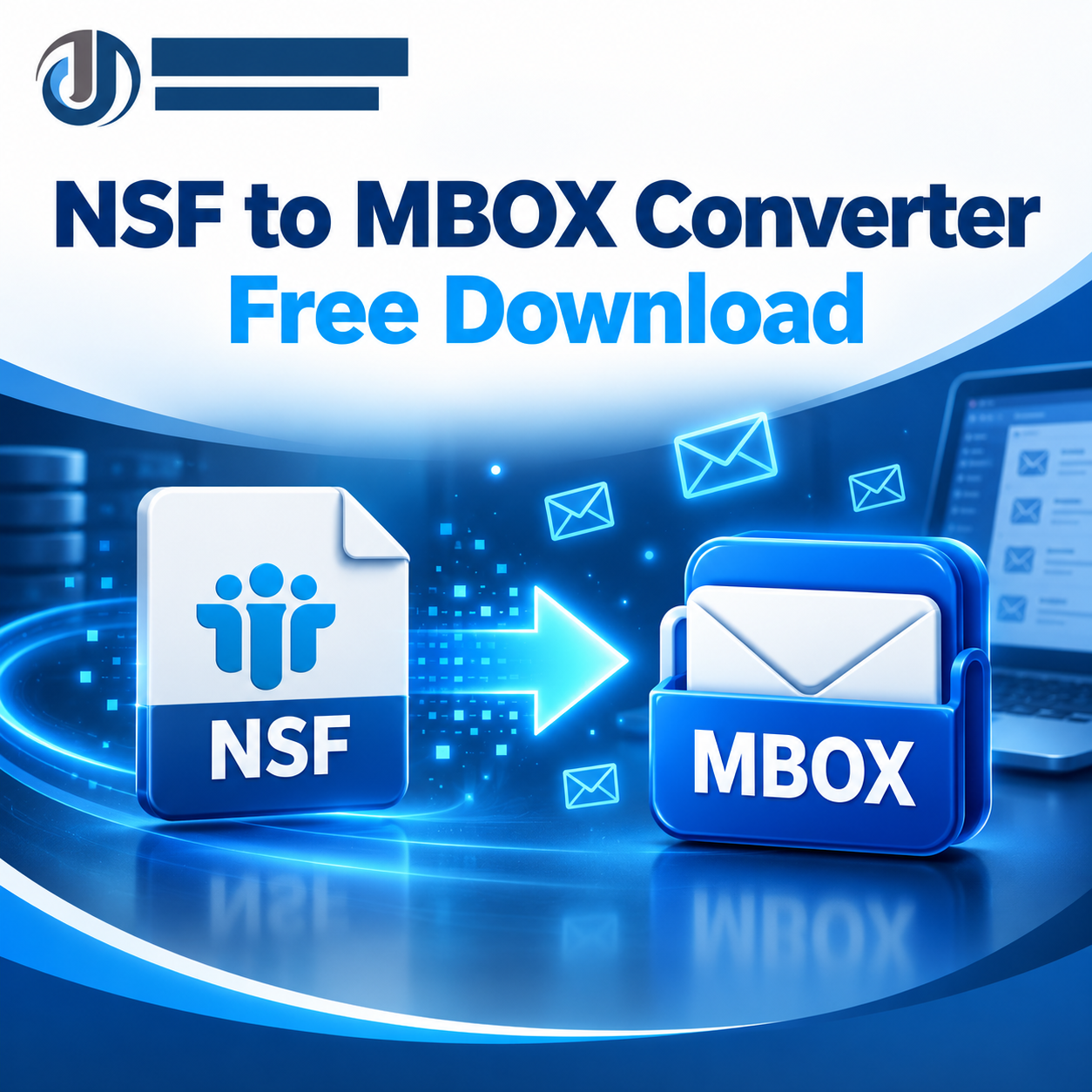
Mozilla Thunderbird is a popular desktop email client that supports email management across multiple accounts. However, users migrating from IBM Lotus Notes or HCL Notes may discover that their existing emails are stored in NSF (Notes Storage Facility) databases rather than a format Thunderbird can import directly.
This is where an NSF to MBOX converter for Thunderbird can help. The conversion process extracts supported email messages from NSF databases and exports them into MBOX files, which can then be imported into a compatible Thunderbird setup using an appropriate import method.
A successful migration involves more than converting a file. Users should consider email compatibility, attachments, folder organization, database accessibility, and post-conversion verification. This guide explains how NSF-to-MBOX conversion works, how to prepare your files, and how to move the resulting email data into Thunderbird.
What Is an NSF to MBOX Converter for Thunderbird?
An NSF to MBOX converter is a software utility designed to read supported email data from Lotus Notes or HCL Notes databases and export it into MBOX format.
NSF databases can contain emails, attachments, contacts, calendar entries, and other Notes application data. MBOX, by comparison, is primarily a format for storing email messages. Therefore, converting NSF to MBOX generally focuses on email content rather than every type of data stored in the original database.
Thunderbird supports MBOX-based email storage, but the exact import process depends on the Thunderbird version and the available import tools. A valid MBOX file may still require a supported import procedure before its messages appear in Thunderbird.
Why Convert NSF Files to MBOX for Thunderbird?
1. Access Legacy Emails
Organizations and individuals may have years of email history stored in NSF databases. Converting supported messages to MBOX can make that correspondence accessible through Thunderbird without relying exclusively on the original Notes environment.
2. Simplify Email Migration
Manual migration can be difficult when dealing with multiple folders, large databases, and attachments. Dedicated conversion software may provide a guided workflow for selecting NSF files, previewing their contents, and exporting supported messages.
3. Preserve Important Correspondence
Business emails often contain customer communications, invoices, project updates, and legal or administrative records. A careful conversion process can help preserve supported message content for continued access.
4. Consolidate Email Management
Users who manage several email accounts may prefer to access their migrated email history in Thunderbird. MBOX export can be a practical step when the destination environment supports the resulting files.
5. Reduce Dependence on Legacy Systems
Moving supported email data to a modern desktop email client may make archived correspondence easier to search and manage. Keep the original NSF databases until you have confirmed that the migration is complete.
Important Features to Look for in NSF to MBOX Software
Not every converter offers the same capabilities. Before selecting a tool, evaluate these features.
Accurate Email Conversion
The software should preserve supported message fields, including sender and recipient information, subject lines, timestamps, and message bodies. Test a sample of messages to identify any differences.
Attachment Support
Attachments may contain important business information. Verify that the converter supports attachment export and check whether representative files open correctly after migration.
Folder Structure Preservation
A tool that maintains folder organization where supported can make messages easier to navigate after import. Check how it handles nested folders and whether Thunderbird displays the exported organization as expected.
Preview Before Conversion
Preview functionality helps users inspect source mailbox contents before exporting. It can be useful for selecting the correct database and identifying the folders that need to be migrated.
Batch Conversion
If you need to convert several NSF files, batch processing may reduce repetitive work. Check whether the feature is available in the product version you intend to use.
Thunderbird Compatibility
Look for clear documentation about MBOX output and the import procedure for your Thunderbird version. The converter and the destination email client must both support the intended workflow.
Data Security
NSF databases may contain confidential information. Download software from a trusted provider, review its privacy policy, and consider whether an offline conversion workflow is appropriate for your data.
How to Convert NSF to MBOX for Thunderbird
The exact steps depend on the conversion tool. Follow this general workflow.
Step 1: Back up your NSF files
Locate the NSF databases and create a separate backup. Do not use your only copy for testing or conversion.
Step 2: Select compatible conversion software
Confirm that the tool supports your NSF database and can export email to MBOX. Some products may require IBM Notes components or particular database access conditions.
Step 3: Add the source NSF file
Open the converter and browse to the required NSF file. If multiple files need to be migrated, check whether the tool supports batch processing.
Step 4: Preview the source data
If a preview is available, inspect the folders and sample emails. Confirm that the expected messages are accessible before starting the export.
Step 5: Choose MBOX as the output format
Select MBOX and configure any available folder-selection or attachment options. Remember that contacts, calendar entries, and other Notes data may require separate export methods.
Step 6: Export the converted mailbox
Choose a secure destination folder with sufficient disk space, then start the conversion. Monitor any progress indicators and record errors if the process stops unexpectedly.
Step 7: Prepare Thunderbird
Install or open Mozilla Thunderbird from its official source. Make sure you have a supported method for importing MBOX files. Depending on your version and setup, this may involve a compatible import add-on or another documented import workflow.
Step 8: Import and verify the MBOX file
Follow the supported import procedure to bring the MBOX data into Thunderbird. Check sample messages, dates, attachments, and folder organization. Compare important records with the source database before considering the migration complete.
Common Problems and Troubleshooting Tips
Thunderbird Does Not Recognize the MBOX File
The file may not be valid, may use an incompatible variant, or may require an import method supported by your Thunderbird version. Follow the destination application's documentation instead of simply changing the file extension.
Missing Attachments
Attachment handling depends on the conversion software and source data. Inspect several exported emails and open representative attachments to confirm they were preserved.
Folder Structure Is Different
Some tools export folders separately, while destination applications may display imported data differently. Review the converter's folder-handling options and the Thunderbird import procedure.
NSF Files Cannot Be Opened
The source file may be damaged, encrypted, inaccessible, or unsupported. Check file permissions, software prerequisites, and database integrity. Use a backup copy for troubleshooting.
Conversion Is Incomplete
Large mailboxes may require additional processing time and disk space. Review error messages and the software's documented limits before retrying.
Free vs. Paid NSF to MBOX Converters
Free tools and trials may be sufficient for small migrations, but they can have restrictions on export volume, batch processing, or advanced features. Paid software may offer additional capabilities or technical support, depending on the license.
Before purchasing, check whether the software supports your specific NSF files, exports usable MBOX data, and works with your Thunderbird import workflow. If a trial is available, test it with representative messages and attachments first.
A paid product is not automatically more accurate, and a free product is not automatically unsuitable. Choose based on verified results, compatibility, security, and cost.
Frequently Asked Questions
Can Thunderbird open NSF files directly?
Thunderbird does not natively treat NSF databases as standard MBOX mailboxes. A conversion or compatible export workflow is generally needed to move supported email content into Thunderbird.
Can I convert NSF to MBOX without Lotus Notes installed?
Some third-party tools advertise standalone NSF conversion, while others require Notes components or specific database access. Check the selected converter's requirements.
Does NSF to MBOX conversion preserve contacts and calendars?
Not necessarily. MBOX is primarily an email format. Contacts, calendar events, and other Notes objects may need separate export procedures.
Is there a free NSF to MBOX converter for Thunderbird?
Some providers offer free trials or limited versions. Verify their export restrictions and licensing terms before using them for a complete migration.
How can I prevent data loss during migration?
Back up the original NSF files, test representative messages, validate attachments and folders, and retain the original databases until you have verified the imported email.
Conclusion
An NSF to MBOX converter for Thunderbird can help users migrate supported email data from Lotus Notes or HCL Notes databases into a Thunderbird-compatible mailbox format. The most important considerations are conversion accuracy, attachment handling, folder organization, data security, and compatibility with the Thunderbird import workflow.
For the best results, back up the original NSF files, test a representative sample, and verify the imported messages before migrating an entire archive. Careful validation helps ensure that important correspondence remains accessible after the transition.
Call to Action: Evaluate an NSF to MBOX conversion tool with sample files, confirm that the exported MBOX data imports correctly into your Thunderbird setup, and proceed with the complete migration only after checking the results.

 Arabic
 French
